FCSTM Visualization Guide
This guide provides a comprehensive introduction to visualizing finite state machines defined in the FCSTM DSL. You’ll learn how to generate PlantUML diagrams using both Python code and the command-line interface, and how to customize the visualization output using the flexible configuration system.
Overview
pyfcstm provides two primary methods for visualizing state machines:
Python API: Programmatic control with the
PlantUMLOptionsclassCommand-Line Interface: Quick visualization with flexible configuration options
Both methods support the same comprehensive configuration system, allowing you to control every aspect of the generated PlantUML diagrams.
Example State Machine
Throughout this guide, we’ll use the following example state machine to demonstrate all visualization features:
def int counter = 0;
def int error_count = 0;

state System {
    >> during before abstract GlobalMonitor;

    [*] -> Idle;
    !* -> Error :: FatalError;

    state Idle {
        enter {
            counter = 0;
        }
    }

    state Active {
        during before {
            counter = counter + 1;
        }

        state Processing {
            during {
                counter = counter + 10;
            }
        }

        state Waiting;

        [*] -> Processing;
        Processing -> Waiting :: Pause;
        Waiting -> Processing :: Resume;
    }

    state Error {
        enter {
            error_count = error_count + 1;
        }
    }

    Idle -> Active :: Start;
    Active -> Idle :: Stop effect {
        counter = 0;
    };
    Active -> Error : if [counter > 100];
    Error -> Idle : if [error_count < 3];
}
This state machine demonstrates key FCSTM features:
Variables:
counteranderror_countfor state trackingHierarchical states:
Activecontains nestedProcessingandWaitingstatesLifecycle actions:
enterandduringactions for state behaviorAspect actions:
>> during beforeapplies to all descendant statesAbstract actions:
GlobalMonitormust be implemented in generated codeTransitions with guards:
Active -> Error : if [counter > 100]Transitions with effects:
Active -> Idle :: Stop effect { counter = 0; }Forced transitions:
!* -> Error :: FatalErrorfrom all states
Visualization
Here’s what this state machine looks like when visualized with default settings:
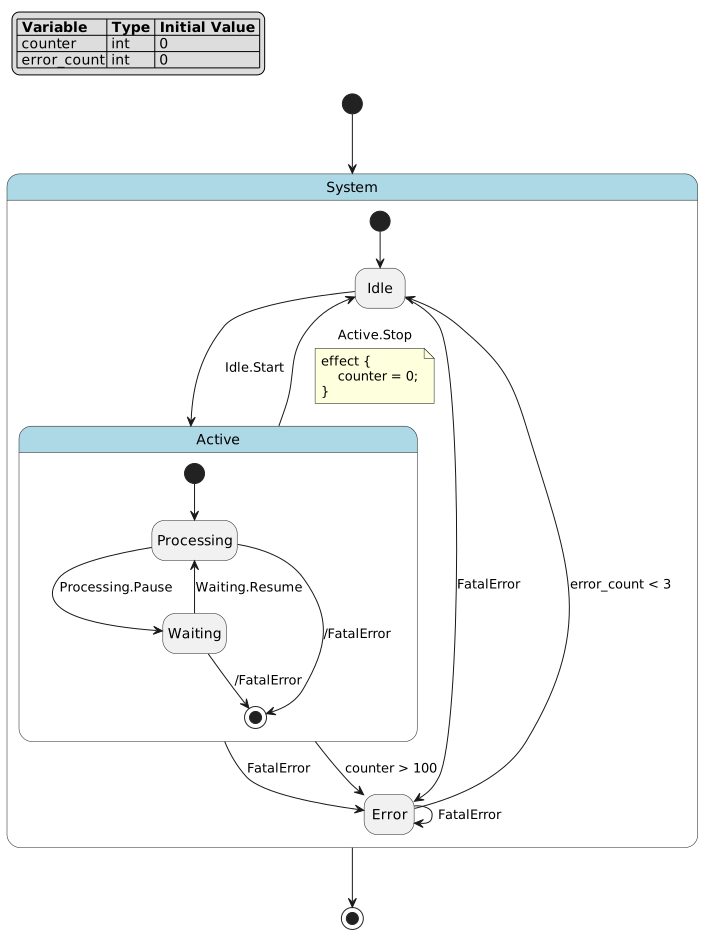
Default visualization of the example state machine
Visualization Methods
Python API Visualization
The Python API provides programmatic control over visualization through the PlantUMLOptions class.
Basic Usage
#!/usr/bin/env python3
"""Basic Python visualization example."""

from pyfcstm.dsl import parse_with_grammar_entry
from pyfcstm.model import parse_dsl_node_to_state_machine

# Read the example state machine
with open('example.fcstm', 'r') as f:
    code = f.read()

# Parse DSL code
ast_node = parse_with_grammar_entry(code, entry_name='state_machine_dsl')
model = parse_dsl_node_to_state_machine(ast_node)

# Generate PlantUML with default settings
plantuml_output = model.to_plantuml()

# Save to file
with open('output_basic.puml', 'w') as f:
    f.write(plantuml_output)

print("PlantUML diagram generated: output_basic.puml")
print(f"Total states: {len(list(model.walk_states()))}")
print(f"Variables: {', '.join(model.defines.keys())}")
Output:
PlantUML diagram generated: output_basic.puml
Total states: 6
Variables: counter, error_count
Generated Visualization
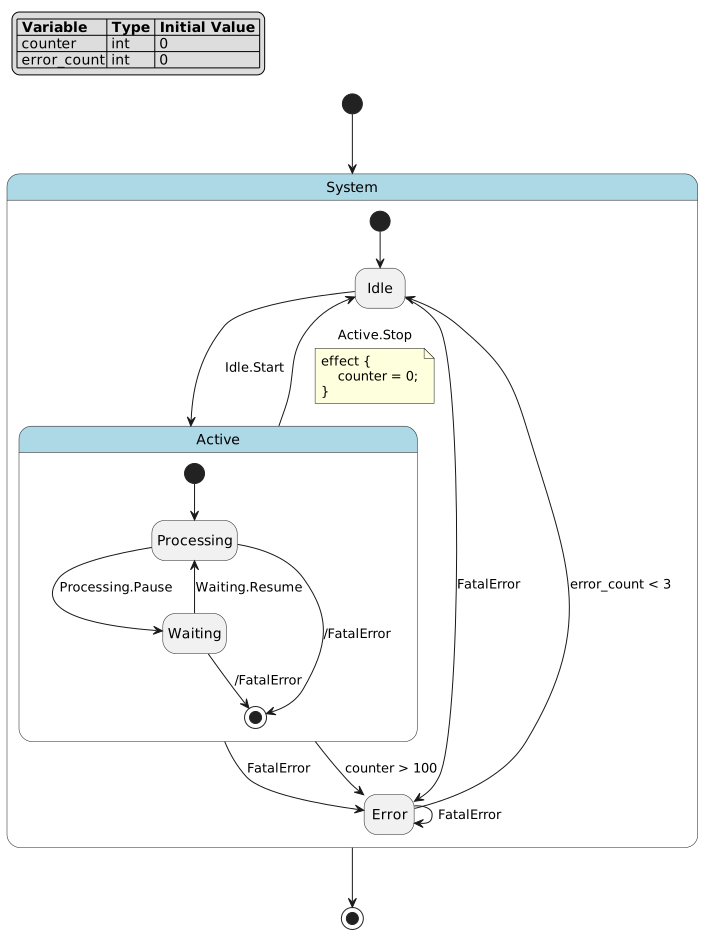
PlantUML diagram generated with default settings
With Custom Options
#!/usr/bin/env python3
"""Python visualization with PlantUMLOptions."""

from pyfcstm.dsl import parse_with_grammar_entry
from pyfcstm.model import parse_dsl_node_to_state_machine
from pyfcstm.model.plantuml import PlantUMLOptions

# Read the example state machine
with open('example.fcstm', 'r') as f:
    code = f.read()

# Parse DSL code
ast_node = parse_with_grammar_entry(code, entry_name='state_machine_dsl')
model = parse_dsl_node_to_state_machine(ast_node)

# Create PlantUMLOptions with custom settings
options = PlantUMLOptions(
    detail_level='full',
    show_events=True,
    max_depth=3,
    show_lifecycle_actions=True
)

# Generate PlantUML with custom options
plantuml_output = model.to_plantuml(options)

# Save to file
with open('output_custom.puml', 'w') as f:
    f.write(plantuml_output)

print("PlantUML diagram with custom options generated: output_custom.puml")
print(f"Detail level: {options.detail_level}")
print(f"Show events: {options.show_events}")
print(f"Max depth: {options.max_depth}")
Output:
PlantUML diagram with custom options generated: output_custom.puml
Detail level: full
Show events: True
Max depth: 3
Generated Visualization
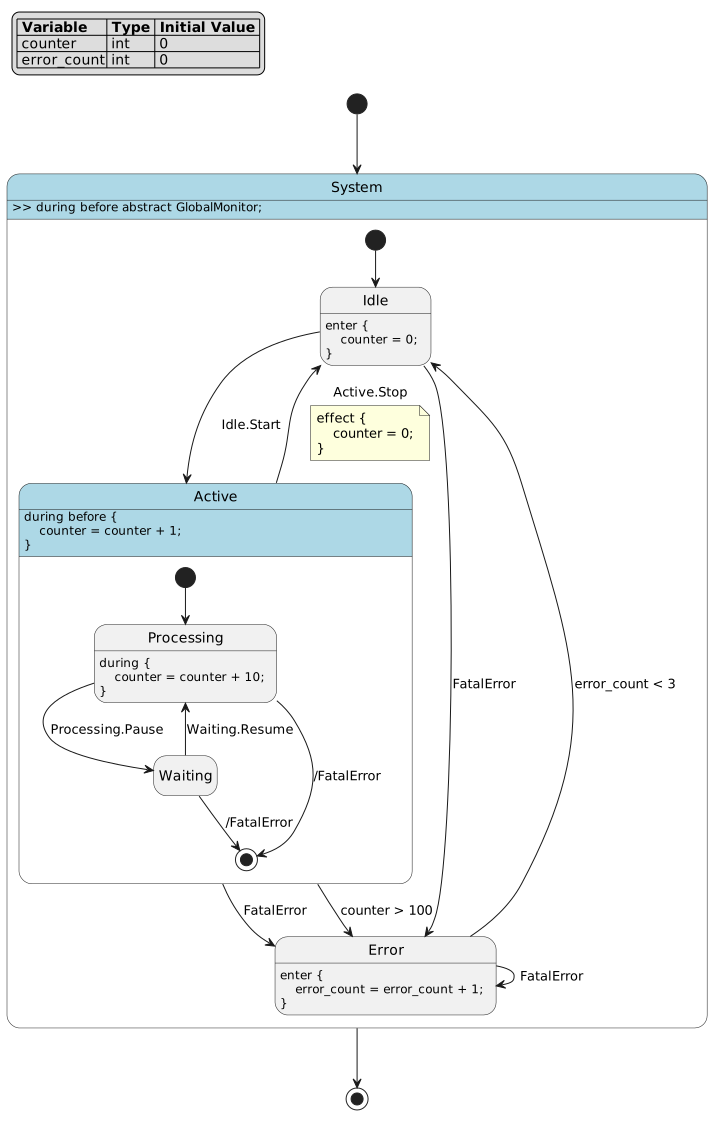
PlantUML diagram with custom PlantUMLOptions (full detail level, events enabled, max depth 3)
CLI Visualization
The command-line interface provides quick access to visualization with flexible configuration.
Basic Usage
#!/bin/bash
# Basic CLI visualization example

# Generate PlantUML with default settings
pyfcstm plantuml -i example.fcstm -o output_cli_basic.puml

echo "PlantUML diagram generated: output_cli_basic.puml"
Output:
PlantUML diagram generated: output_cli_basic.puml
Generated Visualization
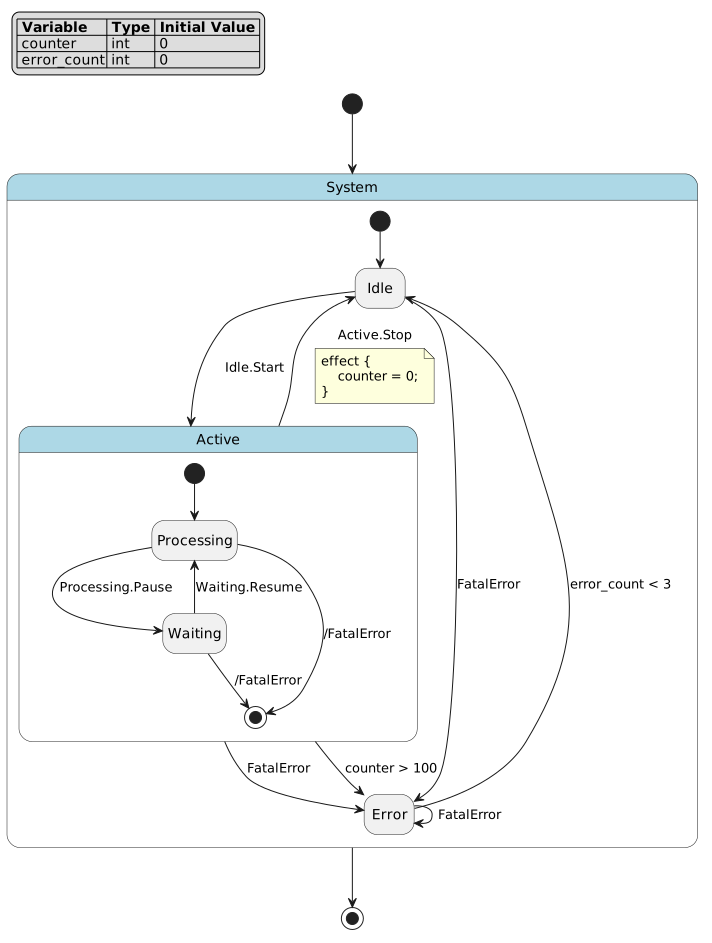
PlantUML diagram generated with CLI default settings
Configuration System
The visualization system provides comprehensive configuration through PlantUMLOptions. All options are available in both Python API and CLI.
Configuration Options Reference
The following table provides a complete reference of all available configuration options:
Option |
Type |
Default |
Description |
|---|---|---|---|
Preset Level |
|||
|
str |
|
Preset detail level: |
Variable Display |
|||
|
bool |
|
Show variable definitions (inherits from detail_level if None, defaults to True for all levels) |
|
str |
|
How to display variables: |
|
str |
|
Legend position: |
State Formatting |
|||
|
tuple |
|
State name format: |
|
bool |
|
Apply dotted border styling to pseudo states |
|
bool |
|
Hide action text for states with no lifecycle actions |
Lifecycle Actions |
|||
|
bool |
|
Master switch for all lifecycle actions (enter/during/exit/aspect) |
|
bool |
|
Show enter actions (inherits from show_lifecycle_actions) |
|
bool |
|
Show during actions (inherits from show_lifecycle_actions) |
|
bool |
|
Show exit actions (inherits from show_lifecycle_actions) |
|
bool |
|
Show aspect actions ( |
Action Details |
|||
|
bool |
|
Show abstract actions (inherits from show_lifecycle_actions) |
|
bool |
|
Show concrete actions (inherits from show_lifecycle_actions) |
|
str |
|
Abstract action marker: |
|
int |
|
Maximum lines per action (None = unlimited) |
Transitions |
|||
|
bool |
|
Show guard conditions on transitions |
|
bool |
|
Show transition effects |
|
str |
|
Effect display mode: |
Events |
|||
|
bool |
|
Show event names on transitions |
|
tuple |
|
Event name format: |
|
str |
|
Event visualization: |
|
str |
|
Event legend position: |
Hierarchy Control |
|||
|
int |
|
Maximum nesting depth to visualize (None = unlimited) |
|
str |
|
Text marker for collapsed states |
PlantUML Styling |
|||
|
bool |
|
Include skinparam styling block |
|
bool |
|
Add stereotype markers ( |
|
dict |
|
Custom color mapping for events (event path -> hex color) |
Notes:
Options with
Nonedefault inherit fromdetail_levelpreset or parent optionsshow_lifecycle_actionscontrols defaults for enter/during/exit/aspect/abstract/concrete actionsTuple options accept multiple format elements combined in display order
CLI uses
-c key=valuesyntax for configuration
Detail Level Presets
Detail level presets provide quick configuration for common use cases:
minimal: Bare structure with minimal details
normal: Balanced view with essential information (default)
full: Complete details including all actions and events
Python API
#!/usr/bin/env python3
"""Python visualization with different detail levels."""

from pyfcstm.dsl import parse_with_grammar_entry
from pyfcstm.model import parse_dsl_node_to_state_machine
from pyfcstm.model.plantuml import PlantUMLOptions

# Read the example state machine
with open('example.fcstm', 'r') as f:
    code = f.read()

# Parse DSL code
ast_node = parse_with_grammar_entry(code, entry_name='state_machine_dsl')
model = parse_dsl_node_to_state_machine(ast_node)

# Generate with minimal detail level
minimal_options = PlantUMLOptions(detail_level='minimal')
minimal_output = model.to_plantuml(minimal_options)
with open('output_python_minimal.puml', 'w') as f:
    f.write(minimal_output)
print("Minimal detail level: output_python_minimal.puml")

# Generate with normal detail level
normal_options = PlantUMLOptions(detail_level='normal')
normal_output = model.to_plantuml(normal_options)
with open('output_python_normal.puml', 'w') as f:
    f.write(normal_output)
print("Normal detail level: output_python_normal.puml")

# Generate with full detail level
full_options = PlantUMLOptions(detail_level='full')
full_output = model.to_plantuml(full_options)
with open('output_python_full.puml', 'w') as f:
    f.write(full_output)
print("Full detail level: output_python_full.puml")
Output:
Minimal detail level: output_python_minimal.puml
Normal detail level: output_python_normal.puml
Full detail level: output_python_full.puml
Visual Comparison
The three detail levels produce significantly different visualization outputs:
Minimal Detail Level
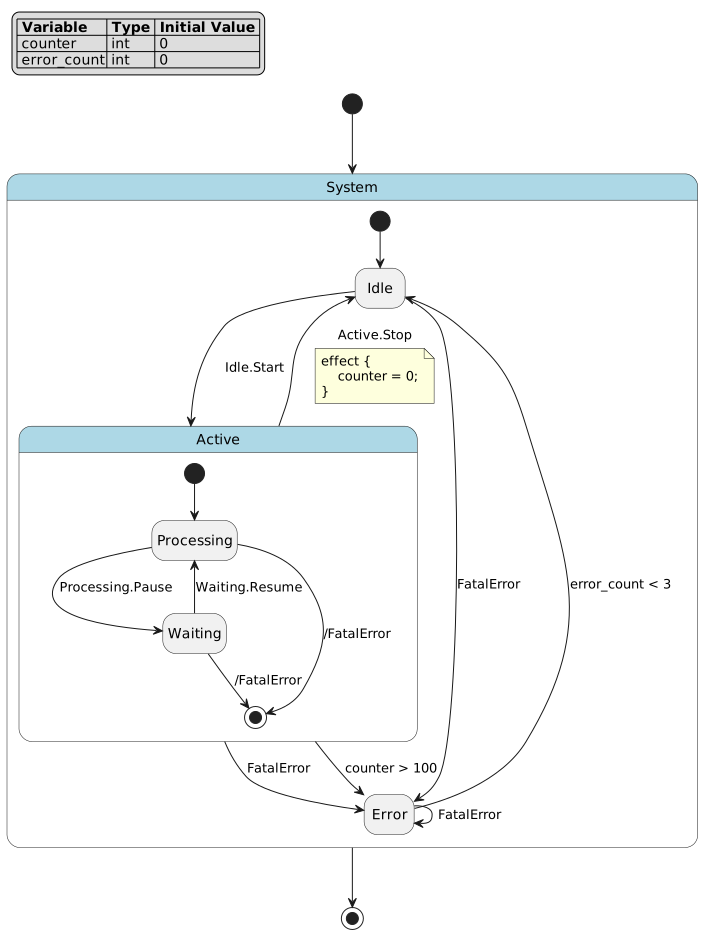
Minimal: Basic state structure only, no actions or detailed information
Normal Detail Level (Default)
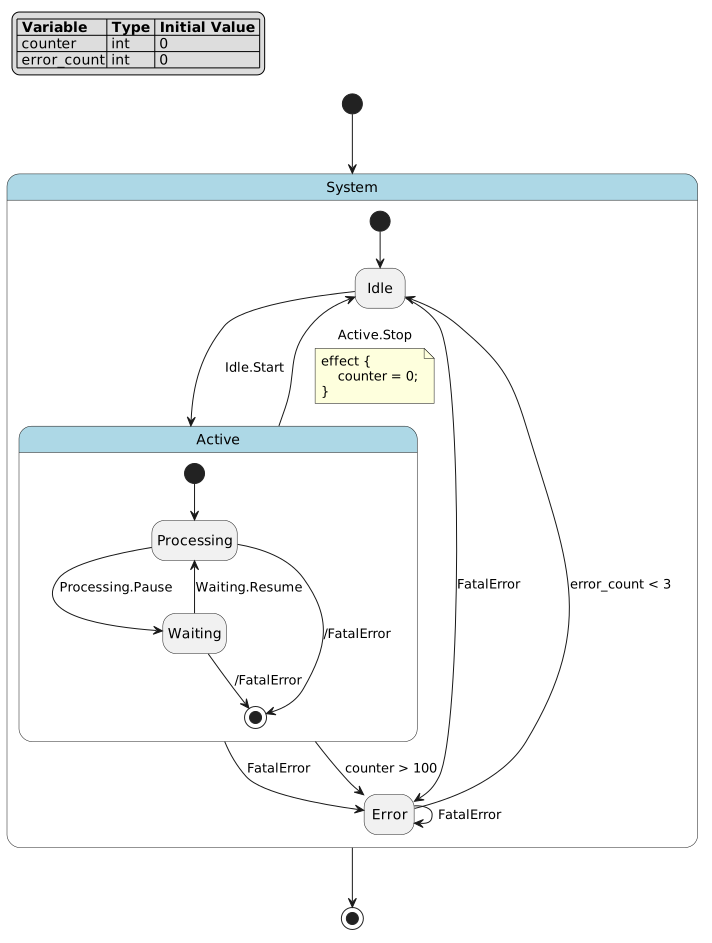
Normal: Balanced view with essential lifecycle actions and transition information
Full Detail Level
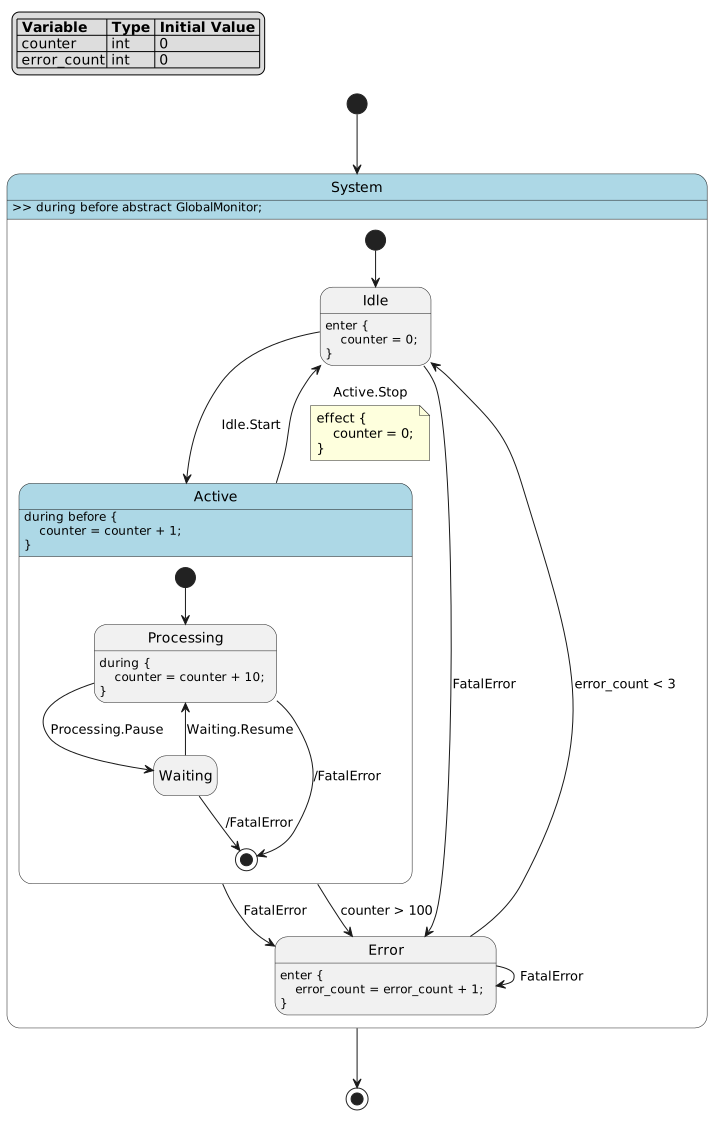
Full: Complete details including all actions, events, guards, and effects
CLI
#!/bin/bash
# CLI visualization with detail level

# Generate with minimal detail level
pyfcstm plantuml -i example.fcstm -l minimal -o output_minimal.puml
echo "Minimal detail level: output_minimal.puml"

# Generate with normal detail level (default)
pyfcstm plantuml -i example.fcstm -l normal -o output_normal.puml
echo "Normal detail level: output_normal.puml"

# Generate with full detail level
pyfcstm plantuml -i example.fcstm -l full -o output_full.puml
echo "Full detail level: output_full.puml"
Output:
Minimal detail level: output_minimal.puml
Normal detail level: output_normal.puml
Full detail level: output_full.puml
Visual Comparison of Detail Levels
The three detail levels produce significantly different visualization outputs. Here’s a side-by-side comparison:
Minimal |
Normal (Default) |
Full |
|---|---|---|
Basic structure only |
Essential information |
Complete details |
No lifecycle actions |
Key actions shown |
All actions visible |
Minimal transitions |
Important transitions |
All transitions with guards/effects |
The generated PlantUML files demonstrate these differences:
Minimal:
output_minimal.puml- Bare state structureNormal:
output_normal.puml- Balanced view with essential detailsFull:
output_full.puml- Complete visualization with all information
Variable Display Options
Control how state machine variables are displayed in the diagram.
Configuration Options
show_variable_definitions(bool): Show variable definitions at the top (defaults to True for all detail levels)variable_display_mode(str): Display mode -'note','legend', or'hide'(default:'legend')variable_legend_position(str): Legend position when using'legend'mode (default:'top left')Available positions:
'top left','top center','top right','bottom left','bottom center','bottom right','left','right','center'
Example
from pyfcstm.model.plantuml import PlantUMLOptions

# Show variables as a legend at top-left (default)
options = PlantUMLOptions(
    show_variable_definitions=True,
    variable_display_mode='legend',
    variable_legend_position='top left'
)

# Place legend at bottom-right
options = PlantUMLOptions(
    show_variable_definitions=True,
    variable_display_mode='legend',
    variable_legend_position='bottom right'
)
CLI Equivalent
# Default position (top left)
pyfcstm plantuml -i example.fcstm \
  -c show_variable_definitions=true \
  -c variable_display_mode=legend \
  -o output.puml

# Custom position
pyfcstm plantuml -i example.fcstm \
  -c show_variable_definitions=true \
  -c variable_display_mode=legend \
  -c variable_legend_position="bottom right" \
  -o output.puml
State Name Formatting
Customize how state names are displayed in the diagram.
Configuration Options
state_name_format(tuple[str, …]): Format components -'name','path','relpath'show_pseudo_state_style(bool): Apply special styling to pseudo statescollapse_empty_states(bool): Collapse states with no actions or substates
Example
# Show both name and full path
options = PlantUMLOptions(
    state_name_format=('name', 'path'),
    show_pseudo_state_style=True,
    collapse_empty_states=False
)
CLI Equivalent
pyfcstm plantuml -i example.fcstm \
  -c state_name_format=name,path \
  -c show_pseudo_state_style=true \
  -c collapse_empty_states=false \
  -o output.puml
Lifecycle Actions Display
Control which lifecycle actions (enter, during, exit) are shown in the diagram.
Configuration Options
show_lifecycle_actions(bool): Master switch for all lifecycle actionsshow_enter_actions(bool): Show enter actionsshow_during_actions(bool): Show during actionsshow_exit_actions(bool): Show exit actionsshow_aspect_actions(bool): Show aspect actions (>> during before/after)show_abstract_actions(bool): Show abstract action declarationsshow_concrete_actions(bool): Show concrete action implementationsabstract_action_marker(str): Marker for abstract actions (default:'«abstract»')max_action_lines(int): Maximum lines to show per action block
Example
# Show only enter and during actions, hide exit actions
options = PlantUMLOptions(
    show_lifecycle_actions=True,
    show_enter_actions=True,
    show_during_actions=True,
    show_exit_actions=False,
    show_abstract_actions=True,
    max_action_lines=10
)
CLI Equivalent
#!/bin/bash
# CLI visualization with configuration options

# Show events and set max depth
pyfcstm plantuml -i example.fcstm \
  -c show_events=true \
  -c max_depth=3 \
  -o output_with_events.puml

echo "Generated with events visible: output_with_events.puml"

# Customize lifecycle actions display
pyfcstm plantuml -i example.fcstm \
  -c show_enter_actions=true \
  -c show_during_actions=true \
  -c show_exit_actions=false \
  -o output_lifecycle.puml

echo "Generated with custom lifecycle actions: output_lifecycle.puml"
Output:
Generated with events visible: output_with_events.puml
Generated with custom lifecycle actions: output_lifecycle.puml
Generated Visualizations
The lifecycle actions configuration produces different outputs based on which actions are shown:
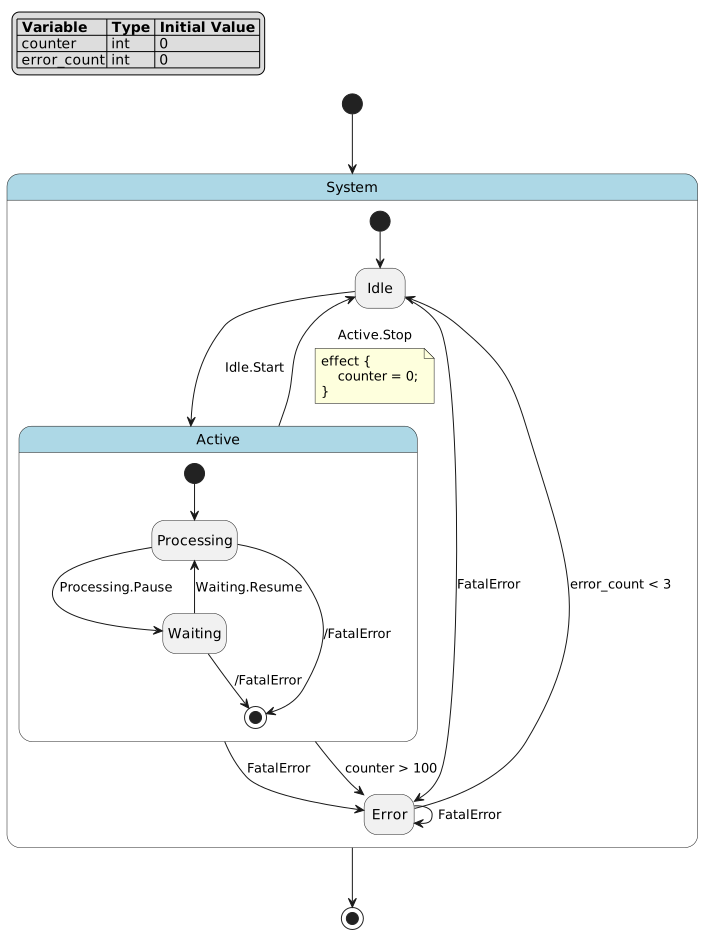
Custom lifecycle actions display (enter and during shown, exit hidden)
Transition Display Options
Control how transitions are displayed in the diagram.
Configuration Options
show_transition_guards(bool): Show guard conditions on transitionsshow_transition_effects(bool): Show effect blocks on transitionstransition_effect_mode(str): How to display effects -'note'or'inline'
Example
# Show guards and effects as notes
options = PlantUMLOptions(
    show_transition_guards=True,
    show_transition_effects=True,
    transition_effect_mode='note'
)
CLI Equivalent
pyfcstm plantuml -i example.fcstm \
  -c show_transition_guards=true \
  -c show_transition_effects=true \
  -c transition_effect_mode=note \
  -o output.puml
Event Visualization
Control how events are displayed in the diagram.
Configuration Options
show_events(bool): Show event names on transitionsevent_name_format(tuple[str, …]): Format components -'name','path','relpath'event_visualization_mode(str): Visualization mode -'none','color','legend', or'both'event_legend_position(str): Event legend position when using'legend'or'both'mode (default:'right')Available positions:
'top left','top center','top right','bottom left','bottom center','bottom right','left','right','center'
Note
Recommended: Use event_visualization_mode='both' to combine color-coded transitions with a legend. This provides the best visualization by making events visually distinct through colors while also providing a clear reference legend showing event names and transition counts.
Example
# Recommended: Show both colors and legend (best visualization)
options = PlantUMLOptions(
    show_events=True,
    event_name_format=('name', 'relpath'),
    event_visualization_mode='both',
    event_legend_position='right'
)

# Color mode only (visual distinction without legend)
options = PlantUMLOptions(
    show_events=True,
    event_name_format=('name', 'relpath'),
    event_visualization_mode='color'
)

# Legend mode only (reference without colors)
options = PlantUMLOptions(
    event_visualization_mode='legend',
    event_legend_position='bottom right'
)
CLI Equivalent
# Recommended: Both mode with colors and legend
pyfcstm plantuml -i example.fcstm \
  -c show_events=true \
  -c event_name_format=name,relpath \
  -c event_visualization_mode=both \
  -o output.puml

# Color mode only
pyfcstm plantuml -i example.fcstm \
  -c show_events=true \
  -c event_name_format=name,relpath \
  -c event_visualization_mode=color \
  -o output.puml

# Legend mode with custom position
pyfcstm plantuml -i example.fcstm \
  -c event_visualization_mode=legend \
  -c event_legend_position="bottom right" \
  -o output.puml
Depth Control
Control how deep the visualization goes into nested states.
Configuration Options
max_depth(int): Maximum nesting depth to visualize (0 = unlimited)collapsed_state_marker(str): Marker for collapsed states (default:'...')
Example
# Limit to 2 levels of nesting
options = PlantUMLOptions(
    max_depth=2,
    collapsed_state_marker='[collapsed]'
)
CLI Equivalent
pyfcstm plantuml -i example.fcstm \
  -c max_depth=2 \
  -c collapsed_state_marker=[collapsed] \
  -o output.puml
PlantUML Styling
Control PlantUML-specific styling features.
Configuration Options
use_skinparam(bool): Use skinparam for styling (default: True)use_stereotypes(bool): Use stereotypes for state classification (default: True)
Example
# Disable skinparam and stereotypes
options = PlantUMLOptions(
    use_skinparam=False,
    use_stereotypes=False
)
CLI Equivalent
pyfcstm plantuml -i example.fcstm \
  -c use_skinparam=false \
  -c use_stereotypes=false \
  -o output.puml
Advanced Configuration
Combining Multiple Options
You can combine multiple configuration options to create highly customized visualizations.
Python API
from pyfcstm.model.plantuml import PlantUMLOptions

# Create a comprehensive custom configuration
options = PlantUMLOptions(
    detail_level='full',
    show_events=True,
    event_visualization_mode='both',
    show_lifecycle_actions=True,
    show_enter_actions=True,
    show_during_actions=True,
    show_exit_actions=True,
    show_abstract_actions=True,
    max_action_lines=10,
    state_name_format=('name', 'path'),
    event_name_format=('name', 'relpath'),
    max_depth=3,
    use_stereotypes=True,
    use_skinparam=True
)

plantuml_output = model.to_plantuml(options)
CLI
#!/bin/bash
# Advanced CLI visualization with multiple options

# Combine detail level with custom options
pyfcstm plantuml -i example.fcstm \
  -l full \
  -c show_events=true \
  -c event_visualization_mode=both \
  -c state_name_format=name,path \
  -c max_action_lines=5 \
  -c use_stereotypes=true \
  -o output_advanced.puml

echo "Generated with advanced configuration: output_advanced.puml"
Output:
Generated with advanced configuration: output_advanced.puml
Generated Visualization
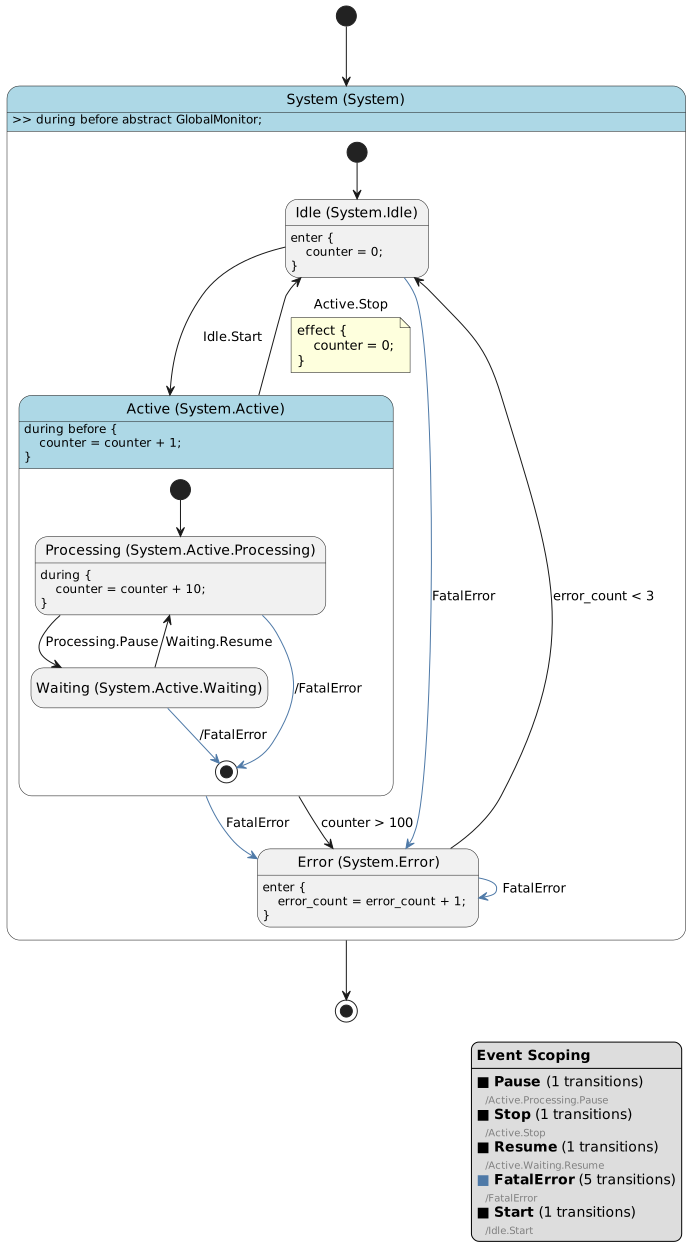
Comprehensive custom configuration combining multiple options (full detail, events with both color and legend, all lifecycle actions, custom name formats, max depth 3)
Configuration Type System
The CLI configuration system supports automatic type inference and explicit type hints:
Supported Types
bool:true/false,yes/no,1/0int: Integer values (e.g.,42,0xFF,0b1010)float: Floating-point values (e.g.,3.14,2.5)str: String values (quoted or unquoted)tuple[T, ...]: Variable-length tuples (e.g.,name,path)tuple[T1, T2]: Fixed-length tuples with specific types
Type Inference
When no type hint is provided, the CLI automatically infers the type:
# Inferred as int
pyfcstm plantuml -i example.fcstm -c max_depth=3

# Inferred as bool
pyfcstm plantuml -i example.fcstm -c show_events=true

# Inferred as tuple[str, ...]
pyfcstm plantuml -i example.fcstm -c state_name_format=name,path
Best Practices
Choosing Detail Levels
minimal: Use for high-level architecture overviews or when presenting to non-technical stakeholders
normal: Use for general documentation and code reviews
full: Use for detailed implementation documentation or debugging
Optimizing Diagram Readability
Start with defaults: Begin with default settings and adjust as needed
Use depth limits: For complex state machines, use
max_depthto focus on specific levelsHide unnecessary details: Disable actions or events that aren’t relevant to your use case
Use event visualization: Enable
event_visualization_mode='color'for better event trackingCollapse empty states: Enable
collapse_empty_statesto reduce visual clutter
Performance Considerations
Large state machines may generate very large PlantUML files
Use
max_depthto limit complexity for initial explorationConsider generating multiple diagrams at different detail levels for different audiences
Next Steps
Explore the PyFCSTM Command Line Interface Guide for more CLI features
Learn about PyFCSTM DSL Syntax Tutorial to create your own state machines
Check out State Machine Code Generator Template Tutorial for code generation from state machines
Summary
This guide covered:
Two visualization methods: Python API and CLI
Comprehensive configuration system with
PlantUMLOptionsDetail level presets (minimal, normal, full)
Fine-grained control over variables, states, actions, transitions, and events
Advanced configuration techniques and best practices
The flexible configuration system allows you to create visualizations tailored to your specific needs, from high-level overviews to detailed implementation diagrams.